Tax Exempt Report
Report Parameters
|
Field |
Description |
|---|---|
|
Report Name |
The name of the report. |
|
Start Date |
The start date from when the data must be considered for generating the report. |
|
End Date |
The end date until when the data must be considered for generating the report. |
|
Report Options |
The data that must be included in the report. Available options include the following:
|
Sample Report
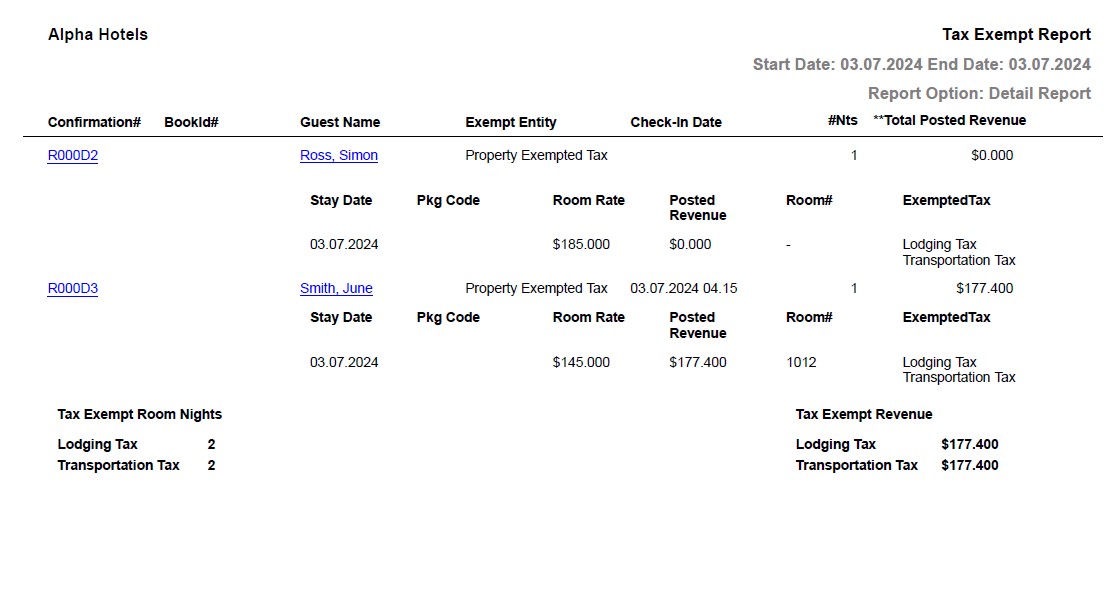
Report Fields
|
Field |
Description |
|---|---|
|
Confirmation# |
The confirmation number of the reservation will appear as a hyperlink and clicking it will navigate the user to the reservation record. |
|
BookID# |
A unique ID to identify the reservation. |
|
Guest Name |
The last name and first name of the guest will appear as a hyperlink and clicking it will navigate the user to the guest record. |
|
Exempt Entity |
Name of the tax-exempt entity. |
|
Check-In Date |
The date when the guest checked-in at the property. |
|
Pkg Code |
The package code associated with the reservation. |
|
#Nts |
The number of nights selected for the reservation. |
|
**Total Revenue Posted |
The total revenue posted for the room. |
|
Stay Date |
The stay date of the reservation for which the tax is exempted. For a multi night reservation, if different tax categories are selected for different stay dates, a separate entry for each date will be displayed. |
|
Room Rate |
The rate of the room type selected for the reservation. |
|
Posted Revenue |
The revenue posted for the room. |
|
Room# |
The room number of the guest. |
|
#NTS |
The number of nights for which the room is reserved. |
|
Exempted Tax |
The taxes exempted for the stay date. Earlier, the names of all exempt taxes were listed as columns in the report and the value, Y or N, was displayed to indicate the exempted tax. |
|
Tax Exempt Room Revenue |
The total revenue after all tax exemptions. |
Report Parameters
|
Field |
Description |
|---|---|
|
Report Name |
The name of the report. |
|
Start Date |
The starting date from when the data must be considered for generating the report. |
|
End Date |
The end date until when the data must be considered for generating the report. |
|
Building |
A drop-down list consisting of all the building codes. All building records created in the Building Codes (Settings à Setup à Room à Building Codes) screen are displayed as options in the drop-down list. Users can select multiple or all the building codes from the list. Rooms pertaining to the selected buildings alone will be displayed in the report. |
|
Room Type |
A drop-down list consisting of all the room types. All room types created in the Room Type Maintenance (Settings à Setup à Room à Room Type Maintenance) screen are displayed as options for selection. Users can select multiple or all options from the list. Rooms pertaining to the selected room types alone will be displayed in the report. |
|
Room Number |
The room numbers for which the last sold date should be displayed in the report. |
|
Enable Date Filter |
When enabled, the last sold date for rooms that fall within the dates selected in the From Date and To Date fields alone will be displayed in the report generated. |
Sample Report
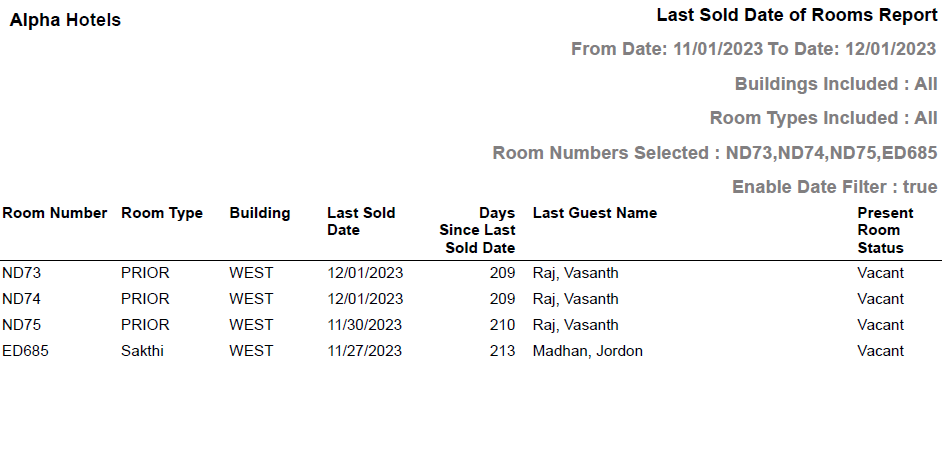
Report Fields
|
Field |
Description |
|---|---|
|
Room# |
The room number of the guest for which the last sold date is displayed. |
|
Room Type |
The room type associated with the room number. |
|
Building |
The building code associated to the room. |
|
Last Sold Date |
The last sold date of the room. |
|
Days Since Last Sold Date |
Number of days since the room was last sold. |
|
Last Guest Name |
The name of the guest. |
|
Present Room Status |
The current status of the room. |